
Set up Wanted in your Discord
Every step, with what you'll see. It takes about two minutes.
-
Add to Discord
Press Add to Discord. Sign in with Discord, and Discord asks to show Wanted your name and your server list. Wanted then lists the servers where you have Manage Server; press Set up beside the one you want.
Only someone with Manage Server (or the server's owner) can add a bot. If that isn't you, send this page to someone who has it.
-
Discord: check the server
Discord opens its own screen with the server you picked already chosen. Check the name, then press Continue.
-
Discord: the permissions
Discord lists what Wanted asks for. Leave them ticked and press Authorize.
- View Channels: to list your channels, so you can pick one on the dashboard.
- Send Messages: to post in the channels you pick, and only those.
- Embed Links: the posts are cards (embeds) with links to this site.
Discord also adds Wanted's
/wantedslash commands. Nothing else: it can't manage your server, roles or messages, can't ping @everyone, and can't read your messages. -
Back here: your dashboard
Discord sends you back to your server's dashboard on this site.
/wantedworks in your server straight away.Choose the channel for the war feed and press Start posting here. Wanted never posts before a channel is chosen. It then says one short hello there, so you know it can post.
The other settings start with sensible defaults and open up once the channel is chosen.
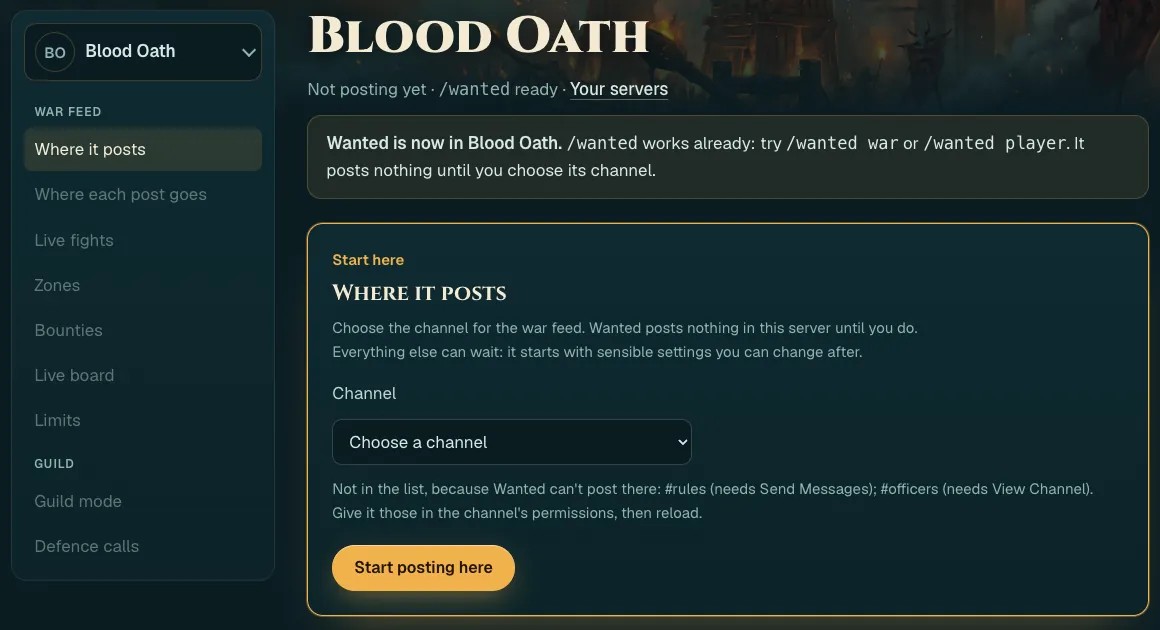
The dashboard right after adding Wanted. -
Pick a channel for each post
In Where each post goes, switch each kind of post on or off: live fights, victories, the Daily Brief, the weekly war, bounties, the bounty board panel and the live board. Each one goes to the feed channel unless you give it its own.
Further down: the zones to report, the smallest fight worth a post, the least bounty to announce, and the most posts a day. Press Save changes at the bottom.
Discord refused a post? That kind of post pauses, and the dashboard says why. Fix the channel in Discord, then save again.
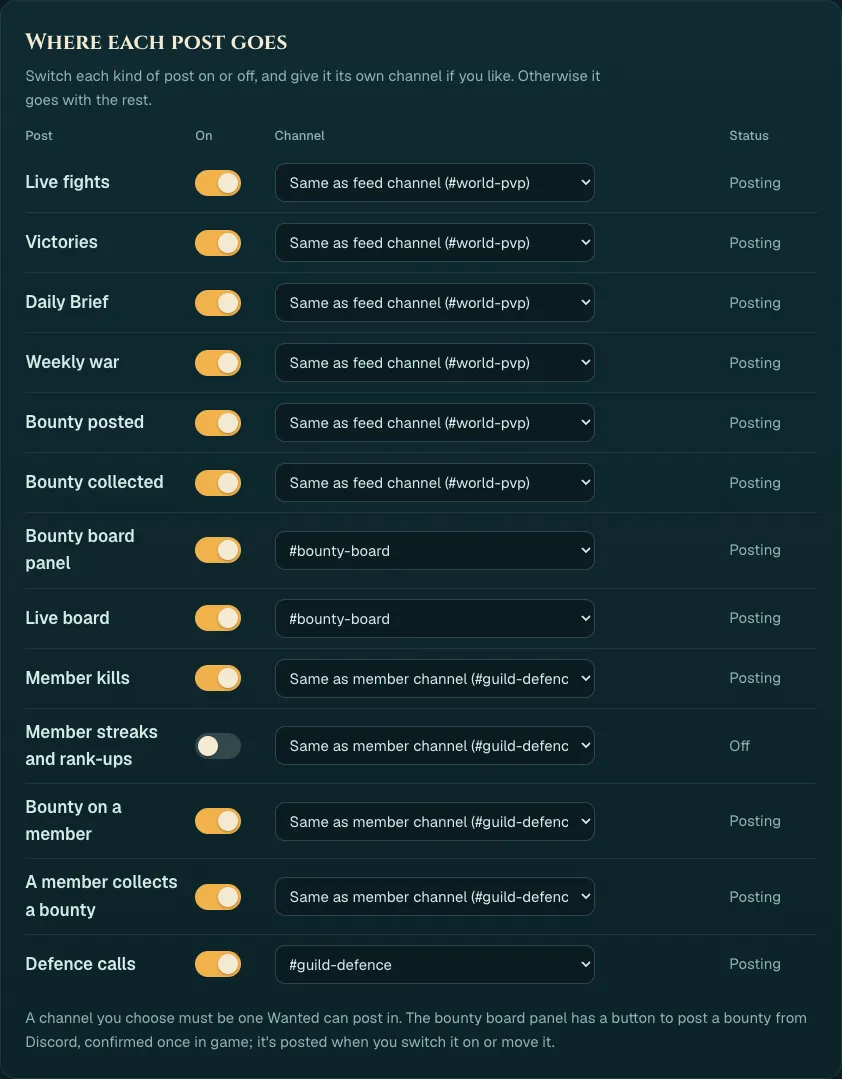
Each kind of post, its switch and its channel. -
Private channels
Wanted only sees channels its role can see. For a private channel, or one where posting is limited, let it in:
- In Discord, hover the channel and choose Edit Channel (the cog).
- Open Permissions, then Add members or roles, and pick the Wanted role.
- Allow View Channel, Send Messages and Embed Links, and save.
- Reload the dashboard: the channel is now in the list.
The dashboard names each channel Wanted can't post in, and what it's missing there.
-
Optional: connect your guild (guild mode)
Guild mode connects the server to one WoW guild. It adds posts about your members: their kills, streaks and rank-ups, bounties put on them, and defence calls. Only an officer of the guild can connect it, and the game has to show it: Wanted doesn't take anyone's word for a rank.
Before you start, you need all four of these:
- The addon and the app on the officer's WoW account: Wanted 1.2.21 or later, and the desktop app running.
- One website account. The dashboard signs you in with Discord, and the app is signed in to a website account too. They must be the same account. If the app is signed in with Battle.net or Google, open Your account and press Connect Discord before you claim.
- Your rank, seen in game. Log in on the officer's character with the app running. The addon notes your guild and rank and the app sends it here. Wanted counts the guild master and any rank the game itself marks as an officer rank.
- A witness. Another member of the guild, on a different website account, with the addon and the app. Their addon sees your rank in the guild roster and confirms it. One person can't connect a guild alone.
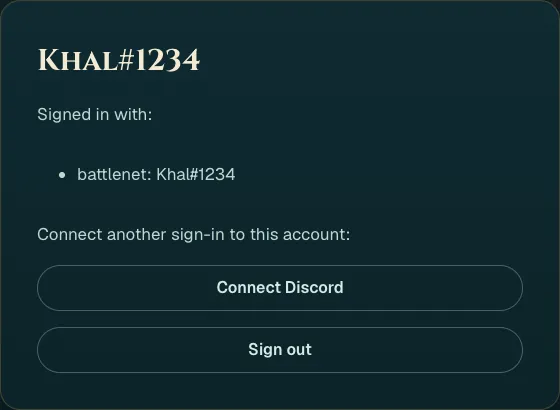
Your account: connect Discord to the account the app uses. To connect it:
- On the dashboard, open Guild mode. Under Connect a guild you're an officer of, pick your character: it shows the guild, the character and the rank.
- Press Connect this guild. It shows Connected, or Waiting when no witness has confirmed your rank yet. A waiting claim turns on by itself once a witness's app reports; there's nothing more to press.
- Once it says Connected, pick the Member channel on the same card, then switch on the member posts in Where each post goes and press Save changes.
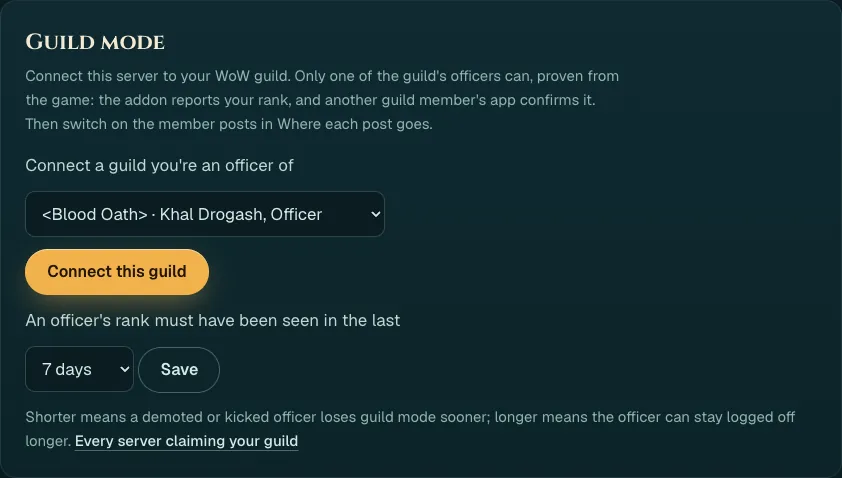
Pick your character, then Connect this guild. 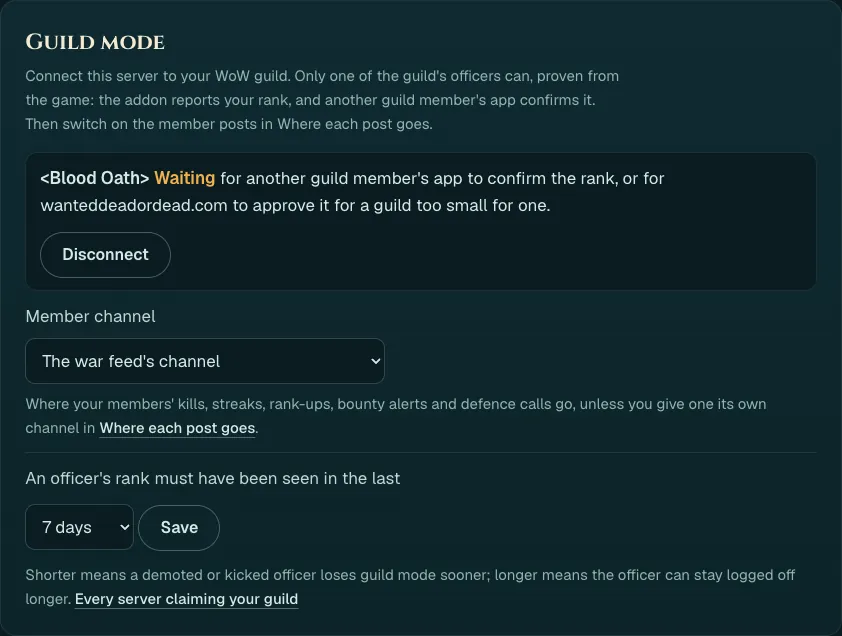
Waiting for a witness. It turns on by itself. Your character isn't listed? The dashboard says why for each of them. The usual reasons: no guild rank reported yet (log in on it with the app running), rank lost: not an officer, or not seen as an officer for 7 days (log in on it again).
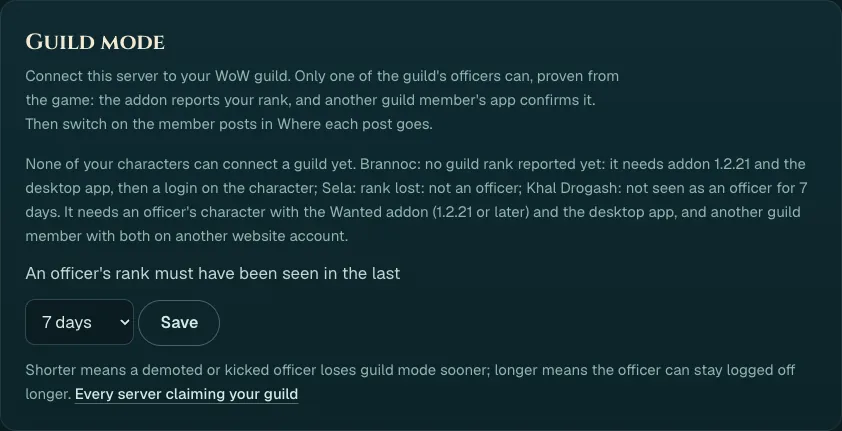
No character can connect yet: the reason for each. No witness, or no officer ranks? A guild too small to have a witness can wait for the site's operator to approve the claim. A guild that runs on custom ranks the game doesn't mark as officers can ask the operator to link it by hand.
Staying connected. Wanted keeps checking the officer who connected it. Their rank must have been seen within the days set under An officer's rank must have been seen in the last (7 unless you change it, from 1 to 30). If that officer leaves the guild, loses the rank or isn't seen for longer, guild mode pauses and says so once in the feed channel. Any officer of the guild can then connect it again. Disconnect removes it. Several servers can connect the same guild; Every server claiming your guild lists them.
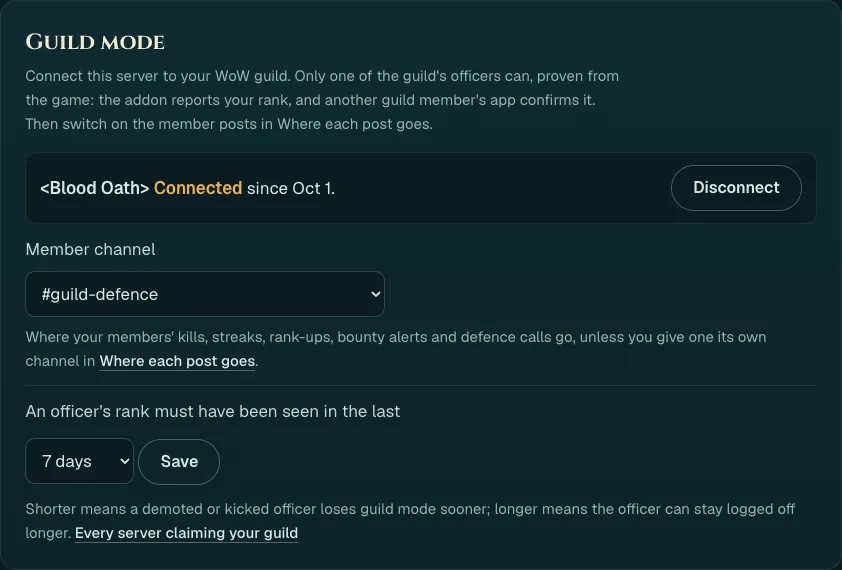
Guild mode, connected. -
Optional: defence calls
Defence calls need a connected guild. They post when a member keeps dying in one zone, with a ping for a role. Make a role people can join, such as "Defence", and let it be pinged: Server Settings, Roles, the role, then switch on Allow anyone to @mention this role. Only roles with that switched on are offered, because Wanted can't ping a role otherwise. It never pings @everyone.
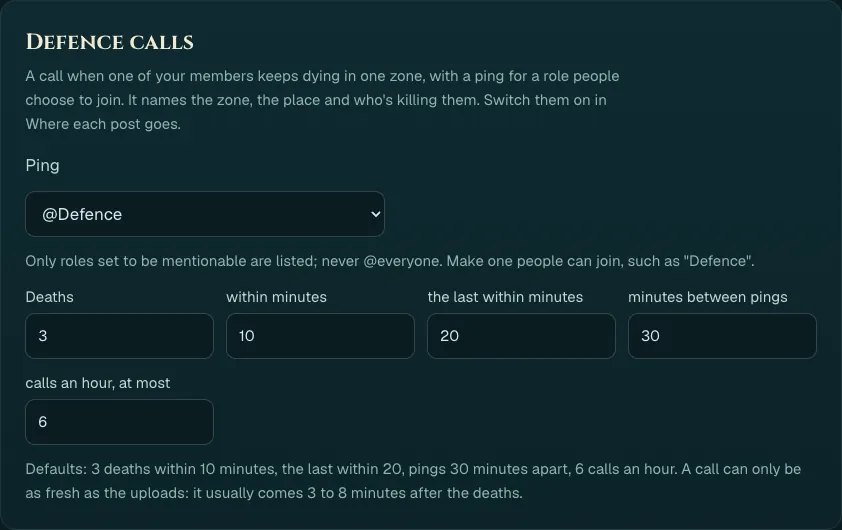
Defence calls, pinging @Defence. -
The bounty panel and the live board
Switch on Bounty board panel in Where each post goes and Wanted posts a panel with Post a bounty and Open bounties buttons. A bounty posted from Discord goes live once it's confirmed in game. If someone deletes the panel, the dashboard offers to post it again.
The Live board is one post with the most wanted, this week's top bounty hunters and the top killers on each side, kept up to date. Choose a new post each day or one post updated for good.
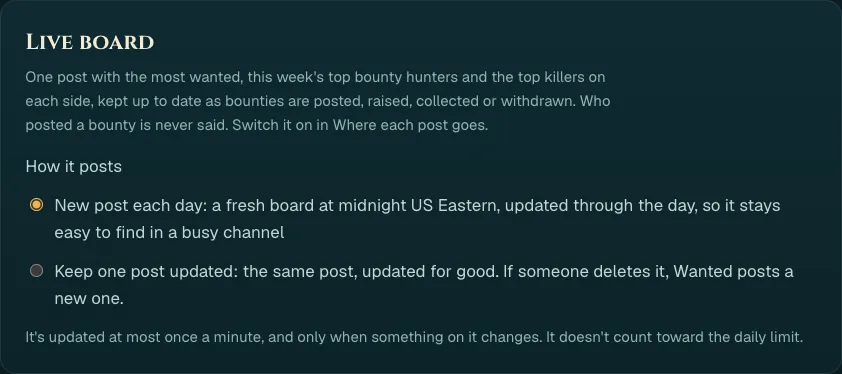
How the live board posts. -
Slash commands
Anyone in your server can use these. The answer goes in the channel for everyone to see:
/wanted playera player's card/wanted guilda guild's card/wanted zonewho holds a zone this week/wanted warthis week's fronts/wanted topthe top 10, for a side, a week or the season/wanted mostwantedthe most wanted/wanted bountiesopen bounties, with where the target was last seen/wanted brieftoday's Daily Brief/wanted bountypost a bounty, confirmed once in game/wanted mybountiesyour bounties waiting in game (only you see it)
/wanted setupgives anyone with Manage Server a private link to the dashboard. To limit who can use the commands, or where, use Server Settings, Integrations, Wanted. -
Removing it
In Discord: Server Settings, Integrations, Wanted, then Remove. It stops posting at once. To stop posting but keep it in the server, press Stop posting on the dashboard.